After some time of speculations about the new name of PBWiki it has actually happened; PBwiki changed its name to PBworks. Two months ago David Weekly, founder of PBWiki, visited the ICCO Alliance and he announced the name would change during his presentation when closing the ComPart South workshop. In the official blog of PBworks, David Weekly explains that the product his team offers has evolved well beyond the definition of a ‘wiki’. It rather is "an increasingly full-featured hosted collaboration environment, used by tens of thousands of companies around the world to get their work done."
How does PBworks work in the ICCO Alliance? Within the ComPart project approximately seventy wikis support programmes of the Alliance. These are used to ‘share information, knowledge and learning with and among colleagues and partners in the ICCO Alliance’. The ComPart sitemap shows the different ways the wikis are used, in Utrecht, in the regional offices and by partner organisations worldwide.
Our thanks go to the PBworks team for continuously improving their services and for the proven commitment to our project. We wish you all the best in supporting other collaborative environments around the globe!
By ComPart Admins

Showing posts with label pbwiki. Show all posts
Showing posts with label pbwiki. Show all posts
Tuesday, 28 April 2009

Thursday, 23 April 2009
Tips&Tricks #5: Document and file management
We all know how difficult it is to manage documents among a group of people. Normally, most of us tend to keep documents in the depth of their mailboxes, making it difficult to search and retrieve them, let alone to share them with colleagues. This often results in a situation when we have multiple versions of the same file...
An important and very useful feature of the new PBwiki is the Document Management, ideal to share Word or pdf documents, spreadsheets, presentations, or any other type of document imaginable -- directly on your wiki.
PBwiki Document Management allow us to have a wiki-style collaboration applied at document level. In other words, we can now upload in a single place one version of a specific document, and see the different revisions this file has had, making much easier to see what has been changing over time.
How does it work?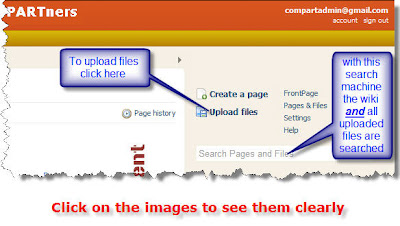
Very simple! You upload the document you want to share with your colleagues onto the wiki, using the 'Upload files' link on the top right corner of your wiki; you then go in the page and files page, click here on the 'Upload files' button. A dialogue window will open, and you can browse and select the document you want to upload from your computer. Click 'Open' and your document will be uploaded onto the wiki and displayed in your wiki's list of files.
Now, when you or your colleagues want to work and edit and existing file or document, you have to follow these simple steps:
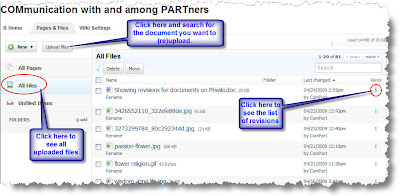 saved as the newest revision of that specific file. The advantage of this system is that you can go back and access previous file revisions, pretty much as you can do for any wiki page. So no more multiple versions of the same file, but a list of revisions of it. Very neat!
A couple of other things to underline when we talk about uploading document onto the wiki.
Firstly, file naming. If you want your document to be easily findable among the list of uploaded files, it's important to name these files correctly, and in a consistent way. Our suggestion if to follow this standard: start the name of your file with the year and month the file has been published, and add the first words of the title. So to have something like '0904_workshop_outline'. This way, you'll be able to browse your list of documents and easily find the one your are looking for.
Secondly, searching your wiki. When you perform a search in your wiki using the search box on the right margin, you'll search all the wiki pages AND files uploaded onto the wiki. For sure you'll be able to find the document your're looking for...as long as it does exists on the wiki!
Please also have a look at the PBwiki help files on this topic.See also the PBwiki webinars.
For other Tips & Tricks follow this link
An important and very useful feature of the new PBwiki is the Document Management, ideal to share Word or pdf documents, spreadsheets, presentations, or any other type of document imaginable -- directly on your wiki.
PBwiki Document Management allow us to have a wiki-style collaboration applied at document level. In other words, we can now upload in a single place one version of a specific document, and see the different revisions this file has had, making much easier to see what has been changing over time.
How does it work?

Very simple! You upload the document you want to share with your colleagues onto the wiki, using the 'Upload files' link on the top right corner of your wiki; you then go in the page and files page, click here on the 'Upload files' button. A dialogue window will open, and you can browse and select the document you want to upload from your computer. Click 'Open' and your document will be uploaded onto the wiki and displayed in your wiki's list of files.
Now, when you or your colleagues want to work and edit and existing file or document, you have to follow these simple steps:
- Download the document onto your computer;
- Open the document and make the changes you need to do
- Save the document keeping the original file name exactly the same;
- Upload this new version of the document onto the wiki.
 saved as the newest revision of that specific file. The advantage of this system is that you can go back and access previous file revisions, pretty much as you can do for any wiki page. So no more multiple versions of the same file, but a list of revisions of it. Very neat!
A couple of other things to underline when we talk about uploading document onto the wiki.
Firstly, file naming. If you want your document to be easily findable among the list of uploaded files, it's important to name these files correctly, and in a consistent way. Our suggestion if to follow this standard: start the name of your file with the year and month the file has been published, and add the first words of the title. So to have something like '0904_workshop_outline'. This way, you'll be able to browse your list of documents and easily find the one your are looking for.
Secondly, searching your wiki. When you perform a search in your wiki using the search box on the right margin, you'll search all the wiki pages AND files uploaded onto the wiki. For sure you'll be able to find the document your're looking for...as long as it does exists on the wiki!
Please also have a look at the PBwiki help files on this topic.See also the PBwiki webinars.
For other Tips & Tricks follow this link
Tuesday, 7 April 2009
Tips&Tricks #4: Table of Contents
 In principle a wiki page can be made as long as you like. However, the longer the page, the more difficult it will be for readers and users to find the exact information one is looking for.
A simple page element can help us to make our pages more user friendly, and create a table of content at the top of different wiki pages so that we can see immediately what we can expect to find on them. Clicking on the items in the table will lead you inmediately to the right place, and even copying the URL in a link - on another place, e.g. the sidebar - will lead exactly to that place on the page.
This post explains how to create this "Table of Contents" on a PBwiki page.
As usual, we need to have rights to access the wiki and do the login. When we're in the wiki, we then edit the page where we want to insert the table of content.

At the top of the page, type "Table of Contents" and make it bold. Then click on the button "Insert Plug-in", mouse over "PBwiki magic" and choose "Table of Contents". Define the "Depth" (the number of levels) you want to have in your ToC. Click on "Preview" and then on "OK".

What still need to be done it's to define which words or phrases you want to appear in the table of contents. These will be the major sections of your page, so it is important that you have a clear idea about what these sections will be.

Once you have this clear, you need to format this sentence or words, using the "Format" option in the editor Toolbar. Mark the words or phrase and choose the H1, H2, or H3 format. Only lines that are formatted this way will show in the TOC. (Make sure not to include the space behind the last word before choosing the format!)
H1 will define your main heading in the ToC; when you choose H2, this will be displayed with indent in the ToC. You can go on with H3, H4 etc to define more subheadings in the ToC.
When you have defined all your headings with the format that you want, click on "Save" and your page will now have a nice Table of Content on top as is shown in the figure at the top of this post.
H1 will define your main heading in the ToC; when you choose H2, this will be displayed with indent in the ToC. You can go on with H3, H4 etc to define more subheadings in the ToC.
When you have defined all your headings with the format that you want, click on "Save" and your page will now have a nice Table of Content on top as is shown in the figure at the top of this post.
Be aware that text you do not want to appear in the ToC, should not be formated with a H(eading) format. So if you want to have some bigger or otherwise bold fonts in parts of the text, use the "size" and/or "bold" formatting tools.
Just try it out and play with these features, that's the way to learn how to work with them. Be sure, nothing can go wrong, you always can go back to an earlier saved version of the page!
Please also have a look at the PBwiki help files on this topic.
For other Tips & Tricks follow this link.
Please also have a look at the PBwiki help files on this topic.
For other Tips & Tricks follow this link.
Friday, 27 March 2009
ComPart Tips & Tricks #3: Accessing the PBwiki2.0
As ComPart-admins we are getting a lot of questions about how to access the wikis after the change to the new version. If you want to read a 'private' wiki - and unfortunately too many of the ComPart wikis are set as 'private' at the moment - or in general if you want to add a comment or edit a page, you have to have request access to the wiki. On the other side, you may get an invitation to join a wiki. Today we explain step by step what to do in both cases.
Access after an invitation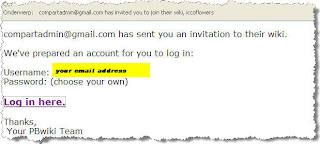
You may get in your mailbox an email from do-not-reply@PBwiki.com with the subject “xxxx has invited you to join their wiki”. The message will look like the image at the right.
However if you click on the “log in here” link, you will only get access to the wiki if you already have a PBwiki account. Most of you do not have such an account yet. This means you will have to create a PBwiki account first. Once you have a PBwiki account you'll use the same personal password for any PBwiki you have or will get access to.
So, how to create a PBwiki account? There are different ways you can do it.
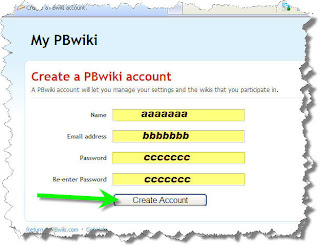
You can go to a public wiki, such as http://compart.pbwiki.com/ and click on “create account” in the upper right of the window. This will lead you to a page similar to the figure at the left. Fill in your name, your email address and two times a chosen personal password. Again: this password will be valid for all Pbwikis you have or will get access to. A general “invite key” as we could use in the previous version of PBwiki will not work anymore.
The way to create an account is slightly different when you have asked access to a wiki yourself without having already a PBwiki account. You can ask to join a wiki by clicking the “request access” button; on a public wiki this will appear on the right panel, on a private wiki it will appear on the login page.
Requesting access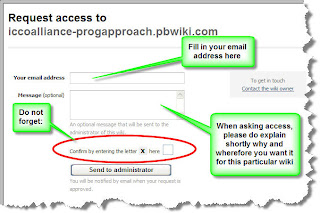
When you use the “request access” button, you will send a massage to the administrators of the wiki with your own email address and hopefully with a message telling you why you would like to access that particular wiki.
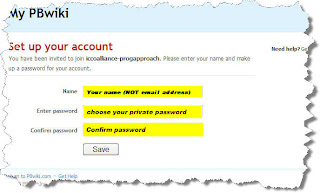
Having requested the access, you then will get a massage back, saying that the access is granted. In this message a link is given saying “Please click here to join [wiki name]”. This link will lead you to a webpage looking like the image below.
Just fill in your name and enter twice a personal password. In that way your account is created and with your email address and the chosen password you can get into any PBwiki you have access to.
Forgot your password?
Of course with all these Internet based tools, we are managing too many passwords and often forget them. If you have forgotten your password once you have created a PBwiki account you can always “reset” it. When logging in to a wiki you always have the option to click a link “Forgot your password” besides the login button. After clicking that button, you fill in your email address and the button “reset”. Nearly immediately you will get a message with gives you an easy way to reset (or re-enter) your password.
Please also have a look at the PBwiki help files on this topic.
For other Tips & Tricks follow this link.
Access after an invitation

You may get in your mailbox an email from do-not-reply@PBwiki.com with the subject “xxxx has invited you to join their wiki”. The message will look like the image at the right.
However if you click on the “log in here” link, you will only get access to the wiki if you already have a PBwiki account. Most of you do not have such an account yet. This means you will have to create a PBwiki account first. Once you have a PBwiki account you'll use the same personal password for any PBwiki you have or will get access to.
So, how to create a PBwiki account? There are different ways you can do it.

You can go to a public wiki, such as http://compart.pbwiki.com/ and click on “create account” in the upper right of the window. This will lead you to a page similar to the figure at the left. Fill in your name, your email address and two times a chosen personal password. Again: this password will be valid for all Pbwikis you have or will get access to. A general “invite key” as we could use in the previous version of PBwiki will not work anymore.
The way to create an account is slightly different when you have asked access to a wiki yourself without having already a PBwiki account. You can ask to join a wiki by clicking the “request access” button; on a public wiki this will appear on the right panel, on a private wiki it will appear on the login page.
Requesting access

When you use the “request access” button, you will send a massage to the administrators of the wiki with your own email address and hopefully with a message telling you why you would like to access that particular wiki.
Having requested the access, you then will get a massage back, saying that the access is granted. In this message a link is given saying “Please click here to join [wiki name]”. This link will lead you to a webpage looking like the image below.
Just fill in your name and enter twice a personal password. In that way your account is created and with your email address and the chosen password you can get into any PBwiki you have access to.

Forgot your password?
Of course with all these Internet based tools, we are managing too many passwords and often forget them. If you have forgotten your password once you have created a PBwiki account you can always “reset” it. When logging in to a wiki you always have the option to click a link “Forgot your password” besides the login button. After clicking that button, you fill in your email address and the button “reset”. Nearly immediately you will get a message with gives you an easy way to reset (or re-enter) your password.
Please also have a look at the PBwiki help files on this topic.
For other Tips & Tricks follow this link.
Thursday, 19 March 2009
ComPart Tips & Tricks - #2: Linking to pages, images and/or files within a wiki
In the new version of PBwiki linking to another page of the wiki, or to images or files uploaded on the wiki has become much easier.
Once in the 'edit' mode, highlight the word (or words) where you wan t create a link. Then see on the right hand side the 'insert link' option: here you can choose the item you want to link to just by clicking on it.
Under 'insert links' you see that you have two tabs: 'pages' and 'images and files'. So choose what you want to link to and scroll until you see the desired item. Click on it and the link is immediately inserted. Easy! ;-)
You can also choose to 'Insert a link to a new page'; or to 'Upload a file' and then link to it.
Did you make a mistake and want to change the link inserted?
Just highlight again the word(s) and select again the page or file you want to link to. The right one this time! :-)
If you want instead to create a link to a web page or file outside the wiki itself, you should do as you were used to do in version 1 of PBwiki.
Here's how it works: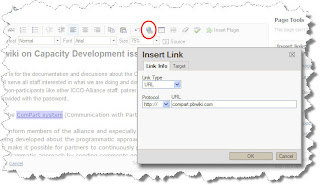
highlight the word (or words) where you want create a link; then click on the 'Link' button on the editing bar; under 'Link Type', choose 'URL' and type in (or copy/paste) the web address you want to link to. Click on the 'OK button and off you go, the link is inserted!
For more information on inserting links in PBwiki, see the PBwiki manual
See more on working with ComPart
Once in the 'edit' mode, highlight the word (or words) where you wan
 t create a link. Then see on the right hand side the 'insert link' option: here you can choose the item you want to link to just by clicking on it.
Under 'insert links' you see that you have two tabs: 'pages' and 'images and files'. So choose what you want to link to and scroll until you see the desired item. Click on it and the link is immediately inserted. Easy! ;-)
You can also choose to 'Insert a link to a new page'; or to 'Upload a file' and then link to it.
Did you make a mistake and want to change the link inserted?
Just highlight again the word(s) and select again the page or file you want to link to. The right one this time! :-)
If you want instead to create a link to a web page or file outside the wiki itself, you should do as you were used to do in version 1 of PBwiki.
Here's how it works:

highlight the word (or words) where you want create a link; then click on the 'Link' button on the editing bar; under 'Link Type', choose 'URL' and type in (or copy/paste) the web address you want to link to. Click on the 'OK button and off you go, the link is inserted!
For more information on inserting links in PBwiki, see the PBwiki manual
See more on working with ComPart
Friday, 13 February 2009
Wiki, wiki, wiki, meet David Weekly..
Wiki is a Hawaian word meaning quick ... Well for those who are really quick, you might still run very wiki wiki wiki, to be able to meet David weekly. This afternoon a public meeting discussed the use of wiki's in development organisations at the ICCO office in Utrecht from two o'clock onwards.
This public meeting closed the ComPart South workshop. Some closing words on the workshop by Maarten Boers were the following 'my expectations have been exceeded in the sense that I feel that we have things in hand with which we can convince others involved. Your intense work and commitment gives me much confidence for the coming years.'
David Weekly in the blip below, explains his interest to listen to experiences of wiki users from Nepal, Mali, Burkina Faso, Chile and Costa Rica during his participation in the ComPart support workshop in the Netherlands. He also explains how PBwiki continues to try to make wikis easier to use and how valuable it has been to meet some major daily users of the PBwiki platform.
David Weekly on the ComPart South workshop
This public meeting closed the ComPart South workshop. Some closing words on the workshop by Maarten Boers were the following 'my expectations have been exceeded in the sense that I feel that we have things in hand with which we can convince others involved. Your intense work and commitment gives me much confidence for the coming years.'
David Weekly in the blip below, explains his interest to listen to experiences of wiki users from Nepal, Mali, Burkina Faso, Chile and Costa Rica during his participation in the ComPart support workshop in the Netherlands. He also explains how PBwiki continues to try to make wikis easier to use and how valuable it has been to meet some major daily users of the PBwiki platform.


David Weekly on the ComPart South workshop
Friday, 23 January 2009
Workshop: Working with Wiki's in Development Organizations - 13 February 2009
More and more development organizations are turning to wikis and other social tools to better communicate, document and share knowledge, collaborate, and exchange information.
Wiki’s are one of the most-used examples and are widely used in the ICCO Alliance ComPart initiative, as well as other development organisations.
On 13 Febrary 2009, ICCO and Euforic organised a workshop on 'Working with Wiki's in Development Organizations'.
This knowledge sharing session capitalized on the presence of David Weekly (founder and CEO of PBwiki) and other partners to share lessons and experiences, exploring how wiki’s are contributing to more effective development exchange.
Who's David Weekly?
I've been programming since I was about five, went to Stanford after coding for MIT and Harvard Physics, and am the founder of PBwiki. Our company has 30 employees and serves over 700,000 groups around the world - The Netherlands is our 12th most popular country for originating traffic, with about 30,000 uniques/month. My first trip to the Netherlands was in 1999 for the ACM International Programming Competition in Eindhoven; my girlfriend was our "team coach" and we snuck out to go clubbing in Amsterdam between events. A great deal of what motivates our team is the positive impact that we make in the lives of those that use our product: getting emails from Peace Corps workers in Namibia or seeing pictures of labs full of children in Costa Rica using our service really fire us up. I personally am very interested in this topic – I gave a talk in Geneva at the Palace of the United Nations in 2001 on community development technologies and attended the World Summit on the Information Society in Tunisia on the same. I flew to Ghana in 2004 to teach kids how to use computers. So of course we're very excited to be able to support development organizations with collaboration technology. I'd be delighted to hear what people are doing or hoping to do with their wikis and what other collaboration tools they're using in their organizations. Thanks so much for this opportunity!
Wiki’s are one of the most-used examples and are widely used in the ICCO Alliance ComPart initiative, as well as other development organisations.
On 13 Febrary 2009, ICCO and Euforic organised a workshop on 'Working with Wiki's in Development Organizations'.
This knowledge sharing session capitalized on the presence of David Weekly (founder and CEO of PBwiki) and other partners to share lessons and experiences, exploring how wiki’s are contributing to more effective development exchange.
Who's David Weekly?
I've been programming since I was about five, went to Stanford after coding for MIT and Harvard Physics, and am the founder of PBwiki. Our company has 30 employees and serves over 700,000 groups around the world - The Netherlands is our 12th most popular country for originating traffic, with about 30,000 uniques/month. My first trip to the Netherlands was in 1999 for the ACM International Programming Competition in Eindhoven; my girlfriend was our "team coach" and we snuck out to go clubbing in Amsterdam between events. A great deal of what motivates our team is the positive impact that we make in the lives of those that use our product: getting emails from Peace Corps workers in Namibia or seeing pictures of labs full of children in Costa Rica using our service really fire us up. I personally am very interested in this topic – I gave a talk in Geneva at the Palace of the United Nations in 2001 on community development technologies and attended the World Summit on the Information Society in Tunisia on the same. I flew to Ghana in 2004 to teach kids how to use computers. So of course we're very excited to be able to support development organizations with collaboration technology. I'd be delighted to hear what people are doing or hoping to do with their wikis and what other collaboration tools they're using in their organizations. Thanks so much for this opportunity!
Subscribe to:
Posts (Atom)